
Find IPTV Canada Setup September 28, 2026
How to Install IPTV on a Firestick in Canada (and Smart TV)
A step-by-step walkthrough for Firestick, then Samsung, LG, Android TV and Apple TV, the connection settings that matter most, and eight errors with fixes.
Find IPTV Canada editors, Plan comparisons and setup notes
Findings
- Allowing installs from unknown sources is the one Firestick step that most often stalls a first install.
- You need credentials, a player app, and the 25 Mbps every service in this comparison recommends for 4K.
- Verify your provincial and French feeds during setup, while you are still on the trial.
4.9/5 A short job on a Firestick and a little longer on a smart TV. Confirm your own feeds on the trial, and wire the device to the router where you can.
VIPSATV issues a 24-hour trial with no card, which is enough to check your own feeds.
Enabling installation from unknown sources is the one Firestick step that stalls most first installs, and everything else is a short sequence of menus. This page covers how to install IPTV on Firestick in Canada first, then the smart TV platforms most Canadian households own, then the errors that stop a setup and the fix for each.
Do the setup on the trial rather than after paying. The coverage check and the installation are the same job, and running them together means your provincial and French feeds are confirmed on your own line before a month is bought.
What you need first
- A Firestick, or a smart TV on one of the platforms below. A 4K model is needed for 4K feeds
- A connection that meets 25 Mbps during your own evening, the figure every service in this comparison recommends for 4K
- An active subscription or trial and the login it came with, either an Xtream username, password and server address, or an M3U playlist link
Every service compared on this site lists Fire TV among its supported devices and offers a trial. If you have not chosen one, the Canadian comparison lists all five with the pricing table. VIPSATV lists a 24-hour trial that starts with an account signup and a free checkout, and asks for an email rather than a card.
How to install IPTV on Firestick in Canada, step by step
1. Allow installs from unknown sources. Many IPTV players are not listed in the Amazon Appstore, and the stick ships with outside installs switched off. The switch is Amazon’s own setting, and turning it on is all that is needed. Nothing on the device needs jailbreaking.
- Settings
- My Fire TV, or Device on older models
- Developer Options
- Turn on Apps from Unknown Sources
Where the Developer Options entry is absent, pressing the device name seven times inside Settings, My Fire TV, About restores it. On recent Fire OS builds the permission is granted per app rather than globally, so the toggle to turn on is the one beside Downloader once it is installed.
2. Add Downloader. It is in the Appstore and it carries every outside install that follows. Open it once and approve the storage prompt.
3. Fetch the player. The address your provider or the player’s developer supplies goes into Downloader’s URL field, and the install prompt follows the download. IPTV Smarters Pro, TiviMate and XCIPTV all run on the Firestick. A player that the Appstore also lists is better taken from the store, where updates arrive on their own.
4. Enter your login. An Xtream login is three fields: username, password and server address typed exactly as issued, including the http:// prefix and the port number. An M3U login is one field, the playlist link pasted whole.
5. Wait for the guide. The first load pulls the whole index, which on a service listing tens of thousands of channels can take a few minutes. It happens once; later launches read the cached copy.
Samsung Tizen
Samsung sets install apps from their own store, so the player has to come from there. Search it for a player that accepts an Xtream login or a playlist link. Listings vary by model year and region, so the player named in a guide for one set may not appear on another. Install what the store offers, enter the login exactly as issued, and wait for the guide as on the Firestick.
Two things differ on a television. A television usually has less memory to spare for building a large guide than a current streaming stick, so the first load can take longer. And the store listing changes with the model year, so a player present on an older set may be absent from a newer one, and the reverse.
LG webOS
The same shape. Open the set’s content store, search for a player that takes an Xtream login or a playlist link, install and sign in. The pointer remote makes the login fields easier to fill than on most platforms.
Where the store on an older set lists nothing usable, a stick in a spare HDMI port is the quicker route. A current stick keeps receiving updates after an older television’s store stops, which makes it the practical answer for an older set.
Android TV and Google TV
The simplest case, and the platform on most set-top boxes sold in Canada. Install a player from the Play Store directly, open it, enter the login. No unknown-sources step is needed when the store lists the player you want. The Android and Android TV player guide compares the players on their published features, the Firestick player comparison covers the same apps on the stick, and the set-top box ranking covers the hardware.
Apple TV
Apple TV runs tvOS, and players come from the App Store. Smarters Player Lite is listed there for Apple TV. Install it, choose the Xtream login option, and enter the three fields. Check whether your model has an Ethernet port; where it does, use it and the connection question is settled before it is asked.
The platforms at a glance
| Platform | Where the player comes from | Extra step before installing |
|---|---|---|
| Firestick | Amazon Appstore where listed, otherwise Downloader | Allow unknown sources for Downloader |
| Samsung Tizen | The set’s own app store | None, but listings vary by model year |
| LG webOS | The set’s own content store | None, but listings vary by model year |
| Android TV and Google TV | Play Store | None when the player is listed |
| Apple TV | App Store | None |
Every platform ends at the same login screen: an Xtream login or an M3U link, entered exactly as issued.
Check your channels now, not later
While the trial is running and the guide is fresh, spend twenty minutes on this.
Search your own list by name. Not by category, which is organised differently on every service.
Check the provincial variant. The national network being listed does not mean your province’s edition is, and the wrong regional news is the first thing a household notices. Every service this site compares lists all 13 provincial and territorial feeds, so the check is about confirming the one you watch plays on your line.
Check the French feed explicitly if anyone in the house watches in French. Some feeds carry French as a second audio track rather than as a separate entry, so open the audio menu in the player as well as the guide.
Open each one for a couple of minutes at the hour you actually watch. Appearing in a guide and playing on a Saturday evening are different things. The local IPTV guide by city lists the regional checks worth making for the larger provinces.
Wire it up
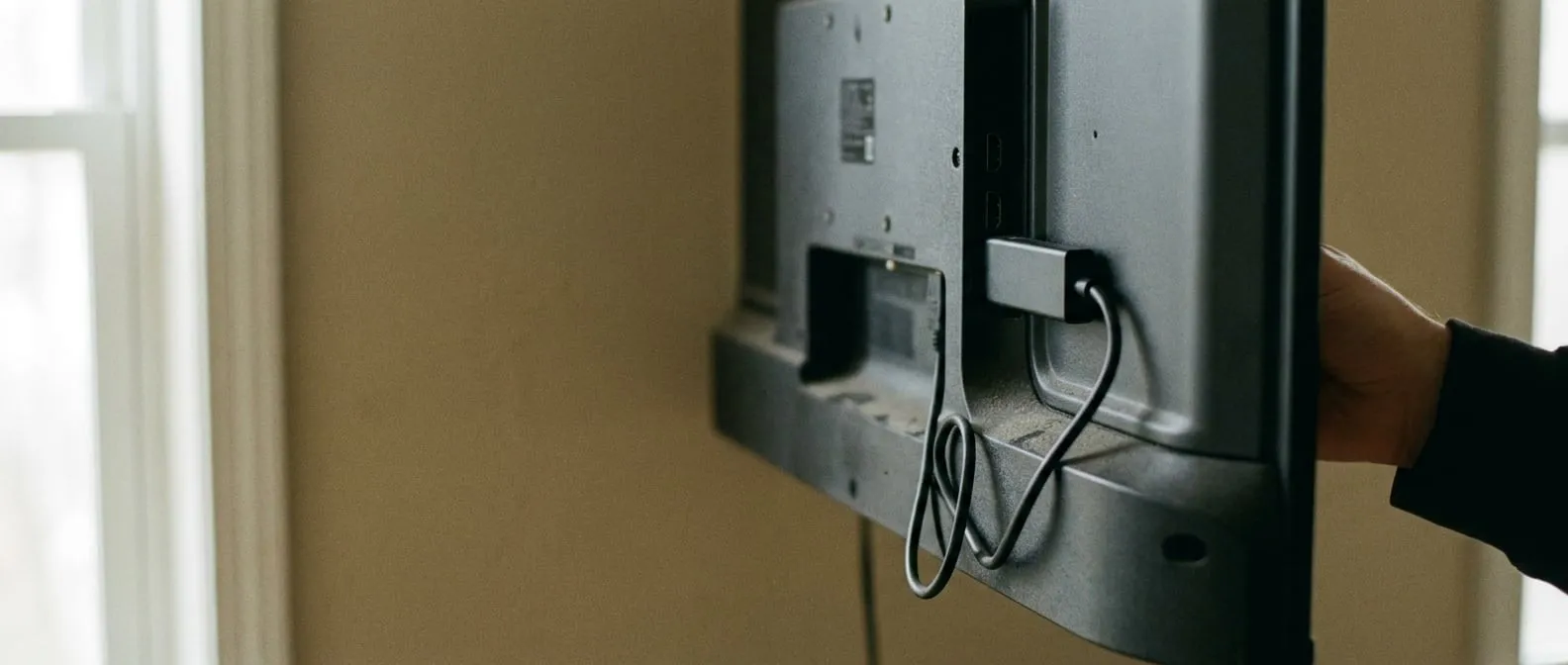
Fit an Ethernet adapter on day one. The stick sits behind a television, a poor position for a wireless signal, often on a band shared with neighbouring networks, and it has to sustain a continuous stream for hours. Wiring it removes the wireless link as a cause of evening stutter.
Powerline is the fallback if a cable cannot reach. Moving the stick onto the 5 GHz band and bringing the router into line of sight is the fallback after that.
Then trim the list
Every service compared here lets you edit the channel list from the account dashboard. Do it before the line-up reaches the television, then set favourites in the player for the dozen channels you open weekly. A shorter list gives the player less to load, and the screen you land on becomes your channels rather than the full index.
Troubleshooting: eight errors and their fixes
A blank screen or an authentication error where the guide should be. The server address was recorded wrongly. The two errors to look for are a dropped http:// prefix and a space carried in on the end of a paste. Retype the field rather than pasting it.
“Account expired” or “invalid credentials” on a line that worked yesterday. The trial has ended, or the login was pasted with the wrong case. Check the expiry date in the account dashboard first; the fix is a paid term or a corrected password.
Downloader reports the file cannot be installed. Unknown sources is off for Downloader specifically. On recent Fire OS builds the permission is per app, so return to Developer Options and check the toggle beside Downloader. If the toggle is on, the file was cut short during download; delete it and fetch it again.
The guide is full but no feed opens. Another screen in the house may hold the stream. A one-connection plan carries one stream, and the newer request takes it. Close the player on the other device or move to a plan with more connections.
Sound plays but the picture is black. The player’s decoder does not suit the feed. Open the player settings and switch the decoder from hardware to software, or the reverse, then reopen the channel.
Channels play but the programme guide is empty. The EPG has not been fetched. Players have a guide refresh option in their settings; run it and allow a few minutes for the listings to build.
Evening stutter on a line that is fine at noon. Work down the list in order: wire the device, empty the player cache, close the background apps, then measure the line at the hour the stutter happens.
Worked for months, fails now. The player is the first suspect. An app whose updates stopped is a common cause, and reinstalling the current build from the store, or from the address the provider gives, often clears it.
With the feeds confirmed on your own line, commit only for the period you expect to keep watching. IPTV versus cable in Canada sets out how the terms compare, and the national channels guide covers the free routes that sit alongside a subscription. The finding from the steps above is a plain one: the player choice matters less than confirming your own feeds on the trial and giving the device a wired connection.
The player is installed. The line is separate
A 24-hour trial from VIPSATV takes no card and is enough to check that your own feeds are carried before paying for a month.
Start the trialWorth knowing
Verify your channels while the trial is still running
The setup walkthrough and the coverage check are the same job. Do them together, on the trial, and you confirm your own provincial and French feeds play on your own line before any money changes hands.
As soon as the guide populates, search for your own list by name. Check the provincial variant rather than just the network, because the network being listed does not mean your province's edition is. If you watch in French, check the French feed explicitly rather than inferring it from the English entry.
Then open each one and let it run for a couple of minutes at the hour you actually watch. A channel appearing in a guide and a channel playing on your line on a Saturday evening are different things, and the trial is the time to check the second.
Wire it up on day one
Among the settings you control, the connection between the device and the router is the one to settle first, ahead of which player you install.
A streaming stick sits behind the television, a poor position for a wireless signal, often on a band shared with neighbouring networks, and is asked to sustain a continuous stream for hours. An Ethernet adapter removes the wireless link from the list of possible causes.
If a cable cannot reach, powerline adapters are the next option. Failing that, move the device onto the 5 GHz band and bring the router into line of sight. This part of the setup costs little, and it rules out a whole category of problem.
Questions
On this guide
01 How do I install IPTV on a Firestick in Canada?
The sequence is: allow installs from unknown sources, add Downloader from Amazon's store, use Downloader to fetch the player your provider names (or install the player from the Appstore if it is listed there), then sign in. The channel guide then builds without further input.
02 How do I install IPTV on a smart TV?
It depends on the platform. Android TV and Google TV sets install a player from the Play Store directly. Samsung and LG sets have their own app stores, and where no compatible player is listed, a streaming stick plugged into a spare HDMI port is usually the simpler route.
03 What do I need before starting?
The list is short: an active subscription or trial, the credentials it came with, a player app, and a connection that meets the 25 Mbps recommended for 4K. Without credentials there is nothing to set up, so the subscription is step zero, best taken on a trial.
04 Do I need to jailbreak anything?
No, nothing needs jailbreaking. On a Firestick you switch on installs from outside the Appstore, a standard setting in Amazon's own menu, and then install a player app.
05 Why is my picture stuttering in the evening?
Start with the connection. Get the device onto Ethernet, clear the player cache, close background apps, and run a speed test at the hour the stutter happens rather than at noon.
06 Can I use one subscription on two televisions?
Two televisions need a plan that includes at least two concurrent connections. Check the connection count on your own plan: where it reads one, a second stream displaces the first rather than joining it.
Where this leaves you
The widest channel list of the five and the deepest film library, on the joint-lowest opening price. It is the one positioned for a household that watches in both official languages.